


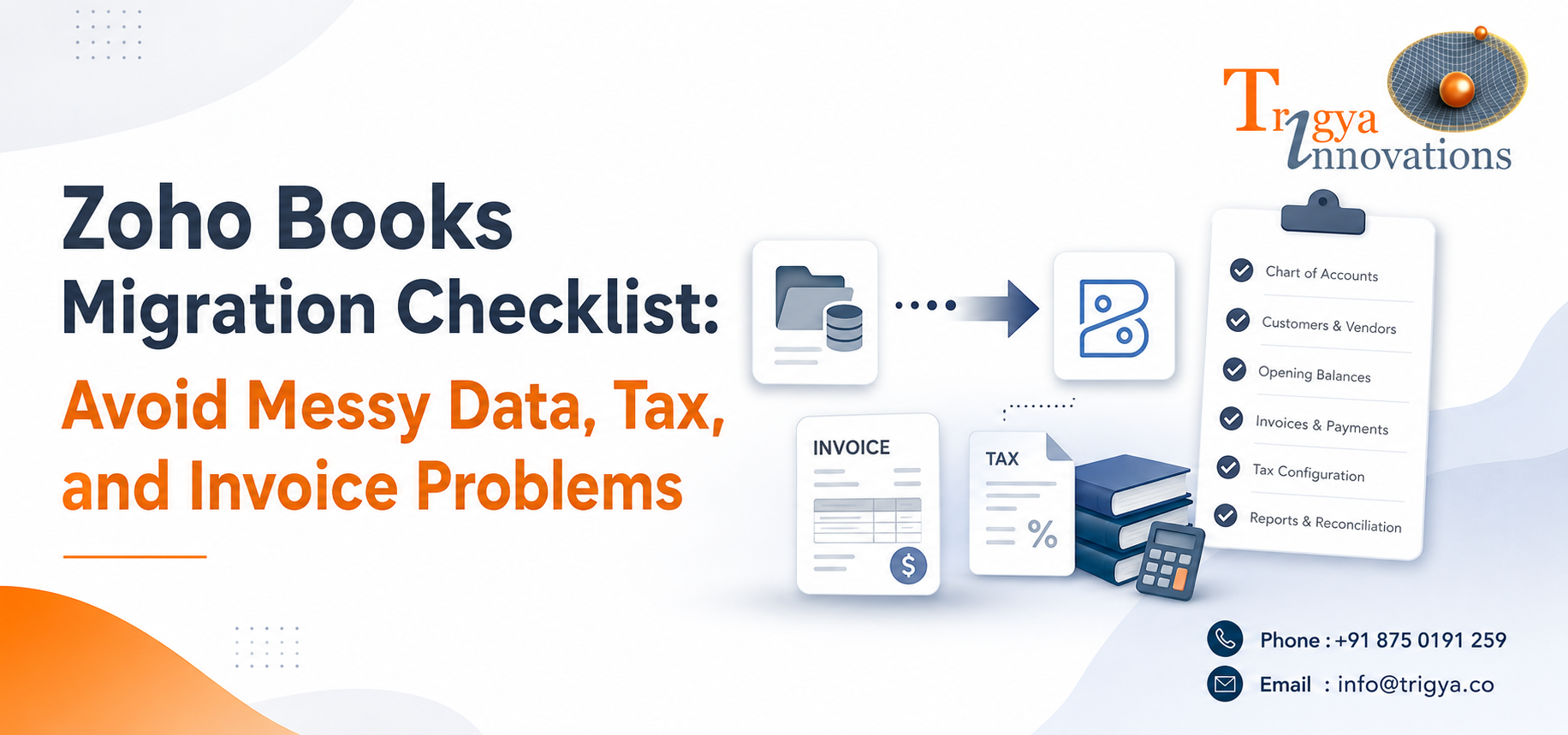
Switching to Zoho Books is a sound decision, but the migration itself needs careful sequencing. This is not just a file transfer. You are moving the financial history of your business into a new system, and the outcome depends entirely on what you do before, during, and after the import.
This checklist is written to be self-contained. You should be able to follow it start to finish without needing to cross-reference another source.
Step 1: Set Up Your Organisation Profile First
This is the most commonly skipped step, and it causes the most downstream problems. Before you migrate any data, you must complete your organisation setup in Zoho Books. Log in, go to Settings, click Profile under Organisation, fill in your details, and save. Only after this should you proceed to any data import.
This matters because Zoho Books ties your tax configuration, currency, and financial year settings to your organisation profile. Import anything before this is complete and those records may not be correctly mapped.
Step 2: Configure All Taxes Before Importing Any Data
Another critical pre-import step is adding all the taxes your business deals with. Go to Settings → Taxes → Tax Rates and add each tax rate your business uses before importing anything. If you import transactions that reference tax rates not yet set up in Zoho Books, the system will auto-create a tax group with incomplete details, and that is difficult to clean up later.
For Indian businesses, this means:
- GST setup: Enable GST under Settings → Taxes & Compliance → GST Settings. Enter your 15-digit GSTIN.
- HSN/SAC codes: Every product and service item must carry the correct HSN or SAC code. These need to be in place before you raise a single invoice in the new system.
- e-Invoicing: If your business turnover exceeds ₹5 crore, e-invoicing is mandatory for B2B transactions. Zoho Books supports direct upload to the Invoice Registration Portal (IRP) and generates IRN-validated e-invoices from within the software. Configure this under Settings → e-Invoicing before going live.
- GST rate verification: The GST Council has updated the rate structure. Verify that your old tax rates are still valid before migrating them across.
Step 3: Audit and Clean Your Existing Data
Before exporting a single file, review what you are actually moving. A messy old books file is the primary reason migrations fail. If your old accounting system is full of duplicates, incorrect balances, unused accounts, or uncleared transactions, Zoho Books will simply copy those same problems into the new platform.
Work through this before exporting:
- Reconcile all bank accounts up to your migration date
- Resolve or write off open invoices with no activity for over a year
- Deduplicate contacts, decide on one naming convention and apply it consistently
- Remove products and services you no longer sell
- Merge unused or redundant accounts in your chart of accounts
Step 4: Export Data in the Correct File Format
This is a practical point the previous version of this article missed. Zoho Books supports only CSV, TSV, and XLS file formats for importing data. Ensure you export from your old system in one of these formats before proceeding. If your old system exports in a different format (PDF, proprietary formats, etc.), convert the data first. Attempting to import an unsupported file type will simply fail with no useful error message.
Step 5: Map Your Chart of Accounts
Your existing chart of accounts will not transfer cleanly without preparation. Custom charts of accounts from systems like QuickBooks don’t always match Zoho Books’ structure, which can produce duplicate or misclassified accounts. Standardise your chart of accounts before migration, merge duplicates and organise accounts for better audit readiness.
Zoho Books has a set of predefined accounts. When importing, you can skip any that already exist as defaults and import only the additional accounts your business uses.
Step 6: Follow the Correct Import Sequence
The order of import is not flexible. Zoho Books has dependencies between modules, if you import in the wrong order, records will fail or link incorrectly.
The correct sequence, per Zoho’s official documentation, is:
Chart of Accounts → Contacts (Customers & Vendors) → Items → Opening Balances → Invoices & Bills → Payments → Journal Entries
A few important notes on this sequence:
On Contacts: When importing customers or vendors, you can include their opening balances directly in the import file and map them to the corresponding field in Zoho Books. This means you don’t need to prepare a separate file to import Accounts Receivable and Accounts Payable when entering opening balances. This saves a significant amount of time.
On Items: If you want to track inventory for your items, you must enable inventory tracking before importing items. Go to Settings → Items → General tab → check Enable Inventory Tracking → set the Inventory Start Date (this must match your Opening Balance Date) → Save. Enabling this after import means your opening stock figures will not be correctly captured.
On Invoices: When importing customer invoices, use the Excel invoice template provided by Zoho Books. Check that all required fields are correctly filled: line item, description of service, invoice date, invoice number, GST amount, type of tax, and total invoice value.
On Vendor Bills: Use Zoho’s standardised vendor import template. Required fields include Bill Number, Bill Date, description, Quantity, Rate, and GST amount. For payments, use Zoho Books’ bulk payment import function to apply payments against the relevant invoices.
On Journal Entries: Zoho Books allows you to import journal entries posted in your previous accounting software, so you don’t need to enter each one individually.
Step 7: Enter Opening Balances Carefully
Opening balances are the financial starting point everything else builds from. Entering them incorrectly is one of the most serious migration mistakes. Zoho Books requires a specific structure for assets, liabilities, expenses, equity, and inventory, and your old system may show these balances differently.
Run a trial balance from your old system on the last day before your migration date. This is your verification document. After import, run the same report in Zoho Books and compare them line by line. If anything doesn’t reconcile, fix it before entering any new transactions.
Step 8: Run a Test Migration First
Many businesses skip a test migration because they assume their data is fine. But a functioning old system and migration-ready data are two different things. Testing would have caught almost every major migration problem.
Zoho Books also offers a Migration Wizard (powered by Relokia) that lets you run a free demo migration on a sample dataset before committing to a full transfer. You can modify your settings and re-run the demo multiple times. Use it. Review the results table for migrated, failed, and skipped records before running the full migration.
Step 9: Post-Migration Configuration
Getting your data into Zoho Books is only half the job. If you skip the post-migration customisation steps, you may end up with inaccurate reports, mismatched tax codes, incorrect invoice layouts, or slow daily operations.
Work through these after go-live:
- Invoice templates: Rebuild these to reflect your branding. These are the documents your clients see, so configure them before raising any new invoices.
- Recurring invoices: These do not transfer automatically. Recreate and automate them in Zoho Books.
- Bank feeds: Zoho Books now supports direct bank feeds from Axis Bank, Kotak Mahindra, and ICICI Bank, among others, allowing automatic transaction import and live balance visibility. Reconnect these after migration and set up bank rules to automate transaction categorisation.
- Approval workflows: If your team has a finance review process, configure approval workflows under Settings → Automation before daily use begins.
- GSTR-9 compliance: Zoho Books has updated the GSTR-9 Annual Return to align with statutory changes from FY 2024–25, including new boxes and columns across multiple tables. Verify your GST filing settings reflect this before your first return period.
- User roles and permissions: Assign roles and restrict bank account access per user under Settings → Users & Roles.
At Trigya Innovations, a Zoho One Premium Partner, post-migration configuration is handled as part of the migration engagement, because these settings directly affect compliance and day-to-day accuracy from the first transaction.
Step 10: Validate Before Going Live
Before switching your team to Zoho Books for daily use, run these checks:
- Trial balance in Zoho Books matches the trial balance from your old system
- Customer aging report matches outstanding receivables
- Vendor aging report matches outstanding payables
- P&L report for the most recent closed period matches your old records
- All bank accounts are reconnected and showing correct opening balances
- At least one test invoice has been raised, approved, and recorded correctly
- e-Invoicing (if applicable) is tested and generating valid IRNs
Quick-Reference Checklist
Before Migration
- [ ] Complete organisation profile in Zoho Books
- [ ] Configure all tax rates, GST settings, HSN/SAC codes
- [ ] Set up e-Invoicing if turnover exceeds ₹5 crore
- [ ] Verify GST rates are current and valid
- [ ] Reconcile all bank accounts in old system
- [ ] Resolve or write off aged open invoices
- [ ] Deduplicate and classify all contacts
- [ ] Standardise and remap chart of accounts
- [ ] Export all data in CSV, TSV, or XLS format
- [ ] Back up full data from old system
During Migration
- [ ] Enable inventory tracking before importing items
- [ ] Follow import sequence: Accounts → Contacts (with opening balances) → Items → Invoices → Bills → Payments → Journals
- [ ] Use Zoho’s official import templates for each module
- [ ] Run a test/demo migration before the full import
- [ ] Review the migration results report for failed or skipped records
After Migration
- [ ] Verify trial balance, P&L, and aging reports against old system
- [ ] Rebuild invoice templates
- [ ] Recreate recurring invoices and payment reminders
- [ ] Reconnect bank feeds and configure bank rules
- [ ] Set up approval workflows
- [ ] Verify GSTR-9 settings for FY 2024–25
- [ ] Assign user roles and bank account permissions
- [ ] Train your team before daily use begins
Final Word
A Zoho Books migration done in the right sequence, with clean data going in, leaves you with a system that works accurately from Day 1. The businesses that prepare thoroughly, cleaning their old data, setting up taxes before importing, and validating every report after go-live, spend far less time correcting errors in the months that follow.
If the volume of historical data, multi-GSTIN setups, or integration requirements make this feel complex, Trigya Innovations works with businesses through each of these stages to make sure the migration is clean, the configuration is correct, and the team is ready to use the system confidently from the start.